Dell provides a version of Command Configure specifically for Microsoft Intune. The important addition is support for a unique BIOS password per device, managed through Intune instead of shared across the fleet.
This walkthrough covers the full setup I used: create the Dell CCTK configuration, package and install Dell Command | Endpoint Configure as a Win32 app, deploy the Intune BIOS policy, and retrieve a device password through Microsoft Graph.
Update: Microsoft deprecated the legacy
hardwarePasswordInforesource starting with Intune release 2406. The retrieval examples below use the replacement/beta/deviceManagement/hardwarePasswordDetailsresource.
BIOS changes can prevent a device from booting or trigger BitLocker recovery. Start with a small, staged group of representative Dell test devices, confirm the results, and expand the deployment in phases. Before a broad rollout, keep a protected backup of every managed BIOS password outside Intune; loss of tenant or subscription access can otherwise leave the devices locked.
Create the Dell BIOS configuration#
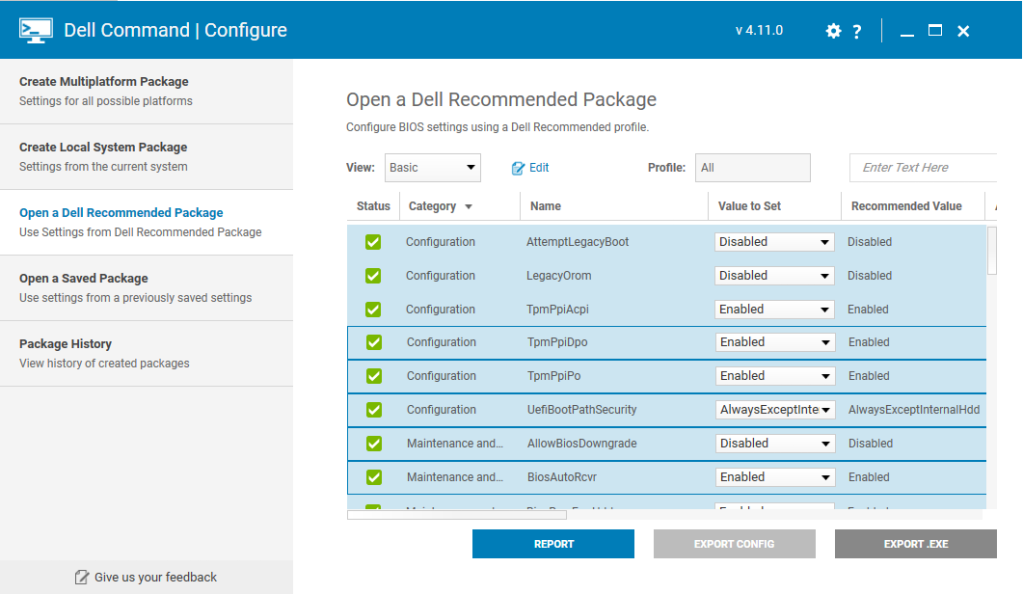
Download Dell Command | Configure Application and configure the required BIOS settings. Select Export config and save the configuration as a CCTK file.
Package Dell Command Endpoint Configure as a Win32 app#
Download Dell Command | Endpoint Configure for Microsoft Intune and click Extract.
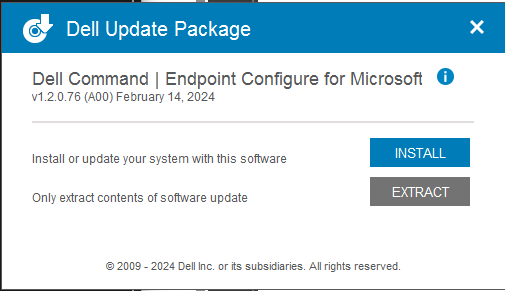
Choose an extraction folder. For this deployment, I used C:\Temp\Dell.
Package the MSI with IntuneWinAppUtil.exe:
C:\Temp\IntuneWinAppUtil.exe -c C:\Temp\Dell -s DCECMI.msi -o C:\Temp
The command creates DCECMI.intunewin in C:\Temp, ready for upload to Intune.
Add and assign the Win32 app#
- Open the Microsoft Intune admin center and go to Apps > Windows.
- On Windows | Windows apps, select Add > Windows app (Win32).
- On App information, select
DCECMI.intunewinand click OK. - Intune pre-populates most of the app information. Add the publisher name and click Next.
- On Program, click Next.
- On Requirements, select the mandatory options for your environment and click Next.
- On Detection rules, select Manually configure detection rules, then click Add.
- Select MSI, click OK, and then click Next.
- On Dependencies, click Next.
- On Supersedence, click Next.
- Assign the app as Required to the staged Dell test-device group that will also receive the BIOS profile.
- Review the configuration and click Create.
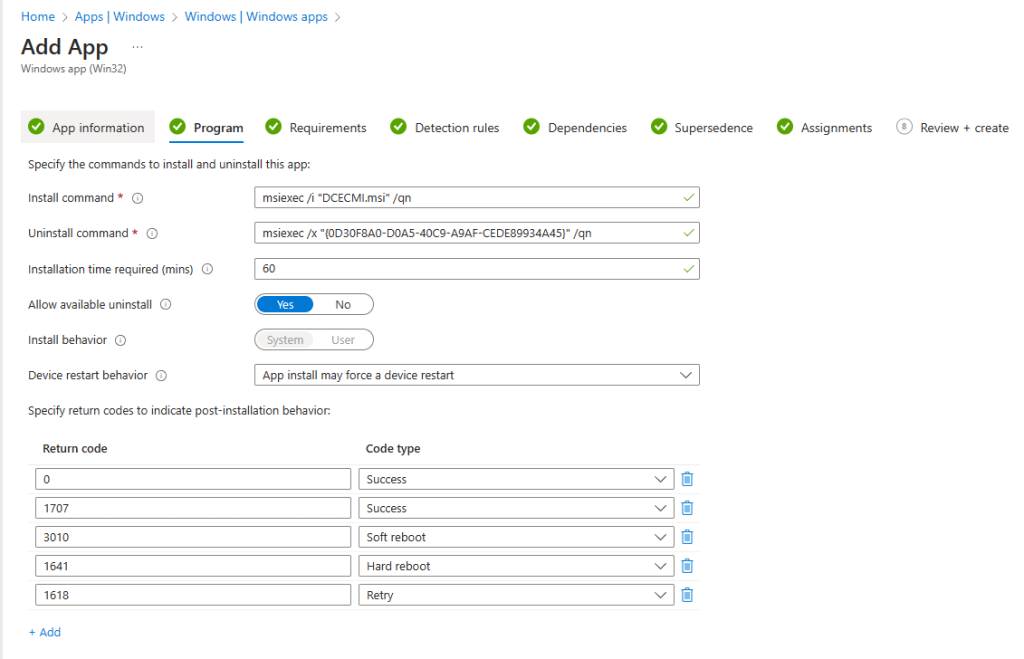
Wait until Intune reports that the OEM Win32 app is installed on every device in the staged group. Dell Command | Endpoint Configure acts as the agent that reads and applies the configuration; it must be installed before you assign the BIOS profile.
Create and assign the BIOS configuration policy#
- Open the Microsoft Intune admin center and go to Devices > Configuration.
- On Devices | Configuration, select Create > New policy.
- On Create a profile, set:
- Platform: Windows 10 and later
- Profile type: Templates
- Template name: BIOS configurations and other settings
- Select Create.
- On Basics, enter a descriptive name and select Next.
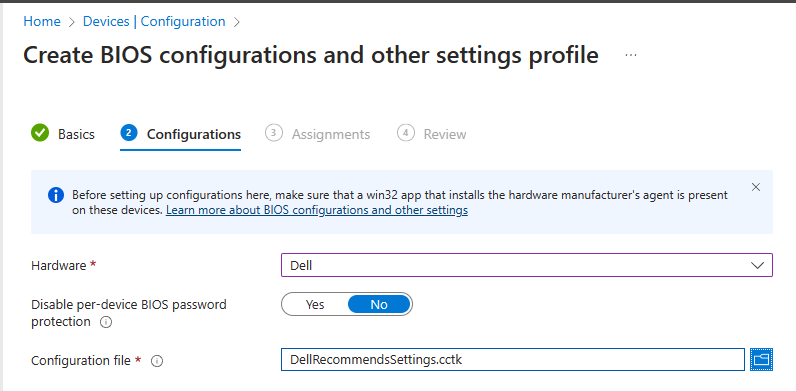
- On Configurations, open Hardware > Dell, then configure:
- Disable per-device BIOS password protection: No. Intune generates and stores a unique password for each device.
- Configuration file: upload the CCTK file created earlier.
- On Assignments, select the same staged Dell test-device group used for the OEM Win32 app, then select Next.
- On Review + create, verify the settings and assignment, then select Create.
After the pilot succeeds, expand both assignments in controlled phases. Monitor failures before each expansion, keep BitLocker recovery information available, and do not unenroll or retire a device while its managed BIOS password is still enabled. If a device will leave Intune management, first set Disable per-device BIOS password protection to Yes, let the removal policy apply, and restart the device.
Apply the policy and retrieve the BIOS password#
On a Dell device, force a sync from Company Portal and restart the device. After the restart, the CCTK settings and the unique password generated by Intune were applied.
To retrieve a managed password, open Microsoft Graph Explorer and consent to the delegated permission DeviceManagementManagedDevices.PrivilegedOperations.All. It is the only delegated Graph permission currently required for this read, but it is highly privileged because it exposes sensitive managed-device operations and secrets.
Graph consent does not replace Intune authorization. Give operators a custom Intune RBAC role with only Managed devices > Read BIOS Password enabled, limit its scope groups to the devices they support, and use a controlled administrative account. Prefer one-device retrieval over listing the entire fleet, never paste returned passwords into tickets or logs, and store any backup in an access-controlled secrets system.
For one device, send this request, replacing <deviceID> with the device’s Intune managed device ID (not its Microsoft Entra device ID):
https://graph.microsoft.com/beta/deviceManagement/hardwarePasswordDetails('<deviceID>')
The response includes the current password and previous passwords for that managed device. The collection endpoint returns password details for all devices and should be reserved for tightly controlled administrative use. Microsoft documents the Microsoft Entra Intune Administrator role as the minimum role for this all-device option; do not grant that broad role merely for routine one-device support:
https://graph.microsoft.com/beta/deviceManagement/hardwarePasswordDetails
The endpoint is currently available only under Microsoft Graph /beta, so verify the API documentation before building automation around it.
Result#
The Dell devices now receive a centrally managed BIOS configuration and a unique per-device password through Intune, after the required OEM agent is in place. Authorized support staff can retrieve one password when needed through Microsoft Graph without relying on a shared fleet-wide secret. A staged rollout, narrowly scoped RBAC, and an independent protected password backup are essential parts of the deployment.
Further reading#
- Dell Command | Endpoint Configure for Microsoft Intune User’s Guide
- Use BIOS configuration profiles on Windows devices in Microsoft Intune | Microsoft Learn
- Get a hardwarePasswordDetail | Microsoft Learn
- List hardwarePasswordDetails | Microsoft Learn
- Legacy hardwarePasswordInfo deprecation | Microsoft Learn